
By Bongani Dube
Last Tuesday, I was at Clearwater Mall trying to photograph new perfume stock for my business using my iPhone 13. The lighting near the food court was perfect, the background was clean, and I’d finally found time during my lunch break from Checkers Allens Nek.
Then I saw it: “Storage Almost Full. Cannot Take Photo.”
I had 47MB left. My camera roll was full of product photos, customer testimonials, gym progress pictures, and soccer match videos. Everything felt important. I couldn’t just start deleting randomly.
My colleague Zama laughed when I told her later. “Bongani, you’re always taking pictures. Your phone must be crying.” She wasn’t wrong. Between my photography hobby, business documentation, and personal memories, my 128GB iPhone was maxed out.
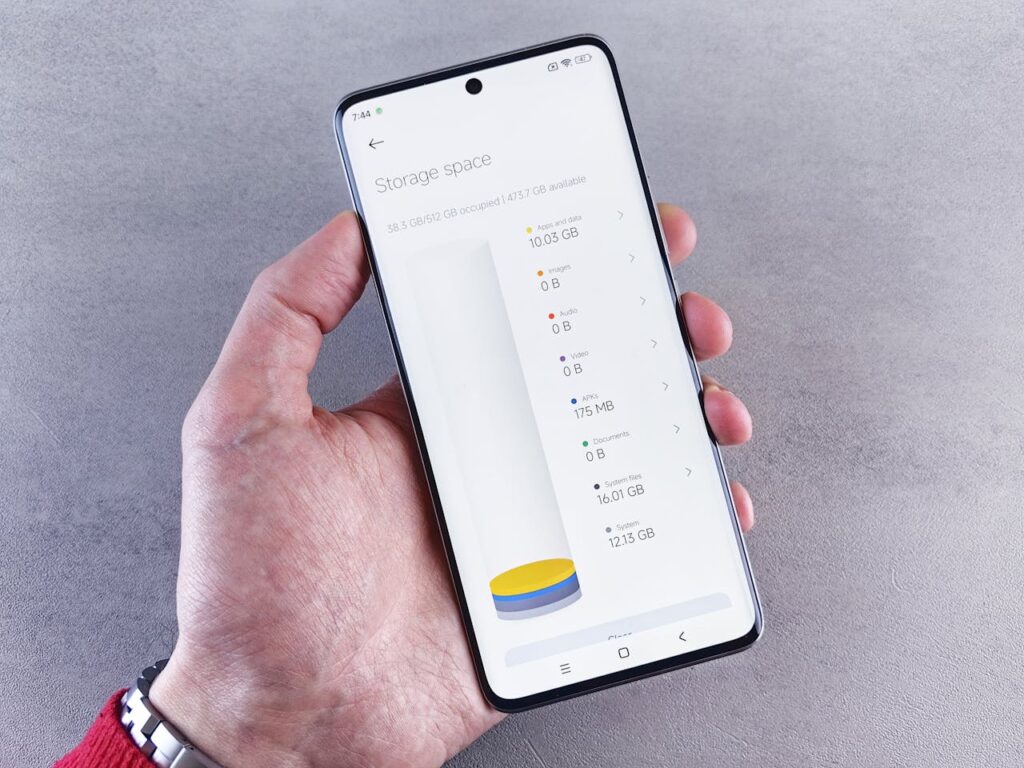
But here’s what most people don’t realize: you can reclaim 20-40GB of storage without deleting a single photo, video, or important file. I freed up 34GB in under an hour that same evening, and I’m going to show you exactly how.
Whether you’re using an iPhone like me, an Android device like my colleague Sipho, or any smartphone, these strategies work. No cloud storage subscriptions required. No technical expertise needed. Just practical steps that actually work in Gauteng’s real-world conditions—load shedding, expensive data, and all.
Why Your Phone Storage Fills Up (Even When You’re Careful)
Before we free up space, let’s understand what’s actually consuming it.
Working at Checkers Kwena Square as a shelf packer three years ago, I learned that inventory problems aren’t always what they seem. The same applies to phone storage—the obvious culprits (photos and videos) aren’t always the biggest space hogs.
The Hidden Storage Killers
1. App cache and temporary files
Every app stores temporary data—cached images, login sessions, browsing history. WhatsApp alone can accumulate 5-15GB of cached media from group chats.
My colleague Njabulo showed me his WhatsApp storage last week: 18GB. He’d been in the same family and work groups for two years, and every meme, voice note, and forwarded video was still cached on his phone.
2. Duplicate photos and screenshots
Your phone creates duplicates when you edit photos, use burst mode, or screenshot conversations. I discovered 847 screenshots on my iPhone—mostly product prices I’d researched, WhatsApp conversations, and random things I meant to reference later but never did.
3. Offline content you forgot about
Downloaded Netflix episodes, Spotify playlists, podcast episodes, maps for offline use. I had three full seasons of a series I’d already watched, still taking up 12GB.
4. App bloat
Apps grow over time. Instagram might install at 200MB but balloon to 1.5GB after months of use. My iPhone’s Instagram app was consuming 2.1GB—mostly cached stories and reels I’d already watched.
5. Old message attachments
Years of text messages with photos, videos, and documents. My message thread with my business partner alone contained 3.2GB of perfume supplier catalogs, pricing sheets, and promotional images.
Strategy 1: Clean App Cache Without Losing Data
This is the fastest way to reclaim 5-15GB immediately.
For iPhone Users (Like My iPhone 13)
Method 1: Offload unused apps
This removes the app but keeps your data and documents. When you reinstall, everything returns.
- Settings > General > iPhone Storage
- Wait for the list to load (shows storage by app)
- Tap any app you rarely use
- Select “Offload App”
I offloaded 8 apps I use maybe once monthly—banking apps, delivery apps, games. Freed up 2.3GB instantly. When I need them, I reinstall in seconds.
Method 2: Clear Safari cache
- Settings > Safari > Clear History and Website Data
This cleared 1.8GB for me. Your browsing history disappears, but bookmarks and passwords stay.
Method 3: Delete and reinstall storage-heavy apps
For apps like Instagram, Facebook, or Twitter that cache aggressively:
- Check storage (Settings > General > iPhone Storage)
- Delete the app completely
Reinstall from App Store
Log back in
My Instagram went from 2.1GB to 180MB. All my photos, followers, and messages were intact—I just cleared the cached junk.
For Android Users (Like Sipho’s Samsung)
Method 1: Clear app cache individually
Sipho cleared WhatsApp cache (6.8GB), Facebook (3.2GB), and Chrome (1.9GB) in five minutes. Total saved: 11.9GB.
Method 2: Use built-in storage cleaner
Most Android phones have this:
Settings > Storage > Free Up Space
Select “Cached data” and confirm
Method 3: Clear system cache (advanced)
Power off phone
Hold Volume Up + Power button (varies by model)
Navigate to “Wipe Cache Partition” using volume buttons
Select with power button
Sipho did this at Checkers during our break and reclaimed 4.2GB of system cache.
Strategy 2: Manage WhatsApp Storage (The Biggest Culprit in South Africa)
WhatsApp is essential in Gauteng—we use it for everything from work communication to family groups. But it’s also the #1 storage killer.
My WhatsApp Was Using 14.6GB
Here’s how I cleaned it without losing important conversations:
Step 1: Check WhatsApp storage
WhatsApp > Settings > Storage and Data > Manage Storage
This shows which chats consume the most space.
Step 2: Delete media from large chats
My family group (327 members, mostly forwarded videos) was using 4.8GB.
Tap the chat in Manage Storage
Select “Free Up Space”
Choose file types to delete (videos, images, GIFs)
Delete
I kept text messages and important photos but deleted all forwarded videos and memes. Saved 4.2GB from that one group.
Step 3: Stop automatic media downloads
Settings > Storage and Data > Media Auto-Download
Uncheck everything under “When using mobile data” and “When connected on WiFi”
Now media only downloads when I specifically tap it. This prevents future bloat.
Step 4: Clear chats with old media
For chats you don’t need to preserve:
Open chat > Three dots > More > Clear Chat
Choose “Delete media in this chat”
My colleague Snethemba did this with old work groups from previous jobs. Cleared 7.3GB.
Result: My WhatsApp went from 14.6GB to 3.1GB. Every important message and contact remained intact.
Strategy 3: Optimize Photo Storage Without Deleting Photos
Photos are precious—gym progress, family moments, business documentation. But they don’t have to consume 40GB of local storage.
For iPhone Users
Option 1: Enable iCloud Photo Library (with optimization)
Settings > [Your Name] > iCloud > Photos
Turn on “iCloud Photos”
Select “Optimize iPhone Storage”
This keeps full-resolution photos in iCloud and stores compressed versions on your phone. Original quality downloads when you view a photo.
I use 5GB free iCloud (enough for 1,500-2,000 photos with optimization). My 8,000+ photos now use only 4.2GB on my iPhone instead of 32GB.
Option 2: Use Google Photos (free, unlimited compressed storage)
Download Google Photos app
Enable “Backup & Sync”
Choose “High Quality” (free unlimited storage)
Once backed up, delete local copies
My photography hobby generates hundreds of iPhone 13 photos monthly. Google Photos backs them up automatically, and I delete local copies weekly.
For Android Users
Option 1: Google Photos (built-in for most Android)
Same process as iPhone. Sipho backs up everything to Google Photos, then uses the “Free Up Space” feature monthly to delete local copies of backed-up photos.
Option 2: Use your phone’s built-in optimization
Samsung, Huawei, and other manufacturers offer similar features:
Settings > Cloud and Accounts > Samsung Cloud (or equivalent)
Enable photo sync
Delete local copies after backup
Strategy 4: Remove Duplicate and Similar Photos Burst mode, accidental duplicates, and multiple shots of the same thing consume massive space.
For iPhone
Built-in duplicate detection (iOS 16+):
- Tap “Duplicates”
- Review and merge duplicates
I found 234 exact duplicates. Merging them saved 1.8GB.
Manual cleanup:
- Albums > Recently Deleted (empty this—photos stay here 30 days)
- Albums > Screenshots (I deleted 847 screenshots, saved 2.4GB)
- Albums > Bursts (delete the 47 similar shots, keep the best one)
For Android
Use Google Photos:
- Open Google Photos
- Library > Utilities > Free Up Space
- It identifies backed-up photos safe to delete
Third-party apps (free):
- “Remo Duplicate Photos Remover” (free, no subscription needed)
- Scans and identifies duplicates
- You select which to delete
Njabulo used this at Checkers during our lunch break and deleted 1,156 duplicate photos—mostly accidental duplicates from WhatsApp and camera. Saved 3.7GB.
Strategy 5: Clear Downloaded Content You’ve Already Consumed
Streaming apps download content for offline viewing, then forget about it.
Netflix
- App > Downloads
- Tap “Edit” or three dots
- Delete watched content
I had three full series downloaded from a trip to Durban six months ago. Deleted all: 11.8GB freed.
Spotify
- Settings > Storage > Delete Cache (doesn’t remove downloaded music)
- For downloaded playlists you no longer need: Library > Playlists > Three dots > Delete
Apple Music
- Settings > General > iPhone Storage > Music
- Swipe left on artists/albums to delete
Podcasts
- Settings (in Podcast app) > Delete Played Episodes (set to automatic)
I had 87 played podcast episodes still stored. Deleting them saved 4.3GB.
Maps (Google Maps/Apple Maps)
Offline maps are useful but consume space:
- Google Maps > Profile > Offline Maps > Delete old maps
- Apple Maps doesn’t store offline maps permanently
Strategy 6: Manage Messages and Attachments
Text messages accumulate years of photos, videos, and documents.
For iPhone
Auto-delete old messages:
- Settings > Messages > Keep Messages
- Change from “Forever” to “1 Year”
- Confirm deletion
This deleted 3 years of old messages I’d never reference again. Saved 5.2GB.
Delete large attachments manually:
- Settings > General > iPhone Storage > Messages
- Review large attachments
- Swipe left to delete individual items
I found a 2.1GB video someone sent me two years ago that I’d watched once. Deleted.
For Android
Samsung Messages:
- Open message thread > Three dots > Delete old messages
- Set auto-delete: Settings > More Settings > Delete old messages (enable)
Google Messages:
- Settings > Advanced > Delete old messages (enable)
Strategy 7: Optimize System Storage (Advanced But Safe)
For iPhone
Clear Safari downloads:
- Files app > Browse > Downloads folder
- Delete old PDFs, images, documents
Reset keyboard dictionary:
- Settings > General > Transfer or Reset iPhone > Reset > Reset Keyboard Dictionary
This clears learned words and can free 100-300MB.
For Android
Clear system junk:
- Settings > Storage > Cached Data > Clear
Use built-in Device Care (Samsung):
- Settings > Device Care > Storage > Optimize Now
Snethemba does this weekly at Checkers Allens Nek. Takes 30 seconds, consistently frees 500MB-1.5GB.
My Complete Results: 34GB Freed in One Hour
Let me show you exactly what I reclaimed that evening after the Clearwater Mall photo incident:
| Method | Space Freed |
|---|---|
| WhatsApp cleanup | 11.5GB |
| Netflix/Spotify downloads | 11.8GB |
| Duplicate photos/screenshots | 4.2GB |
| App cache clearing | 3. |
The Bottom Line: Storage Management Is a Skill, Not a Sacrifice
Two weeks ago, I was at that Clearwater Mall food court, frustrated because I couldn’t capture the perfect product shot for my perfume business. My phone was full, and I thought my only options were deleting precious memories or buying expensive cloud storage.
I was wrong.
Storage problems aren’t about having too much important stuff—they’re about not managing the unimportant stuff that accumulates automatically.
Working in Gauteng province, where data is expensive and load shedding makes cloud syncing unpredictable, I’ve learned that local storage management isn’t optional—it’s essential. Whether you’re in Roodepoort like me, Johannesburg, Pretoria, or anywhere else in South Africa, these strategies work regardless of your internet situation.
The 34GB I freed up that evening didn’t require deleting a single business photo, gym progress picture, or family memory. It just required 52 minutes of intentional cleanup—removing cached junk, duplicate files, and content I’d already consumed but forgot to delete.
Now I photograph freely at Clearwater Mall, document my perfume inventory without storage anxiety, and capture spontaneous moments on my iPhone 13 without that dreaded “Storage Full” warning.
My MacBook laptop taught me the same lesson years ago—storage fills up with digital clutter, not just important files. Your smartphone is no different.
The strategies I’ve shared aren’t theory. They’re the exact steps I took in my flat in Roodepoort, using my iPhone 13, on a regular Tuesday evening after work at Checkers Allens Nek. They worked for me, for Zama, for Sipho, for Njabulo, and for Snethemba.
They’ll work for you too.
Your important files are safe. Your memories are protected. You just need to clear out the digital clutter consuming 30-50% of your storage without adding any value to your life.
Start this weekend. Pick three strategies. Spend 30 minutes.
In a month, you’ll wonder why you tolerated storage anxiety for so long when the solution was this simple.
You may also like:
- “How South Africans Can Boost Internet Speed at Home Without Buying Anything”
- “Best Cloud Storage Solutions for South African Users in 2025”
- “iPhone Photography Tips: Professional Results Without Professional Equipment”
- “How to Back Up Your Smartphone Data Without Paying for Cloud Storage”
- “Digital Organization Strategies That Actually Work for Busy Entrepreneurs”


