
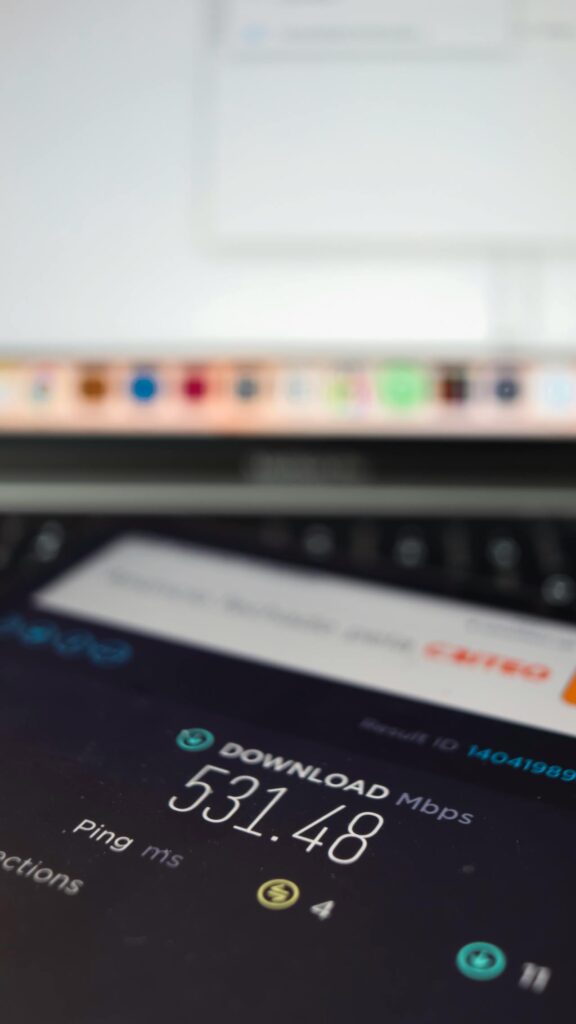
Last month, I was trying to upload product photos for my perfume business on Instagram using my home WiFi in Roodepoort. A task that should take 2 minutes stretched to 25. My iPhone 13 showed full WiFi bars, but the upload speed was slower than load shedding hitting at 6 PM.
I was furious. I’d already paid for my internet package. My router was less than a year old. Why was I getting 2 Mbps when I was paying for 20 Mbps?
Before calling my ISP to complain (and probably waste an hour on hold), I decided to troubleshoot myself. Within 30 minutes of making free adjustments—no new equipment, no upgraded packages, no technician visits—my speed jumped from 2 Mbps to 17 Mbps.
The problem wasn’t my internet connection. It was how I was using it.
If you’re experiencing slow internet at home, frustrated with buffering videos, laggy video calls, or websites that take forever to load, the solution might not require spending money. Most South Africans are losing 40-60% of their paid internet speed due to simple, fixable issues.
Let me show you exactly how to optimize your home internet speed using only the equipment you already have and settings you’ve been ignoring.
Why Your Internet Is Slower Than It Should Be
Before we fix anything, let’s understand what’s actually slowing you down.
Common culprits (from my experience and research):
1. Router Placement (The Biggest Amateur Mistake)
Your WiFi router isn’t just a box you hide in a corner or cupboard. It’s broadcasting radio signals in all directions, and those signals are blocked or weakened by walls, furniture, metal objects, and distance.
My mistake: I had my router in the bedroom cupboard (to hide the ugly box and cables) at the opposite end of my flat from where I actually used the internet—lounge and kitchen.
The signal had to pass through two walls and 12 meters. I was getting maybe 30% of my router’s capability.
2. WiFi Interference From Neighbors
In South African apartment complexes and townhouse developments, you’re competing with dozens of other WiFi networks on the same frequency.
When I checked my WiFi settings, I counted 18 other networks within range. All fighting for the same channels, creating digital traffic jams.
3. Connected Devices You’ve Forgotten About
Your smart TV, old laptop, your partner’s phone, that tablet you haven’t used in months—they’re all connected to your WiFi, consuming bandwidth even when you’re not actively using them.
I discovered 11 devices connected to my network. I only actively use 4.
4. Outdated Router Settings
Most people never touch their router settings after initial setup. But default configurations are rarely optimized for your specific environment.
5. Background Apps and Updates
Your devices are downloading updates, syncing cloud storage, and running background processes you’re not aware of—all consuming bandwidth.
Working at Checkers Allens Nek, I manage inventory on multiple devices. I learned that automatic updates during business hours killed my mobile data. Same principle applies to home internet.
Free Fix #1: Optimize Your Router Placement
This single change improved my speed by 40%.
The Science of WiFi Signals
WiFi signals:
- Travel outward in all directions from your router
- Weaken significantly through walls (especially concrete)
- Are blocked by metal objects and water
- Work best with clear line-of-sight
Optimal Router Placement Rules
✅ DO:
- Place router in a central location (middle of your home, not a corner)
- Elevate it (on a shelf, not on the floor)
- Keep it in the open (not in cupboards or behind furniture)
- Position antennas vertically (if your router has external antennas)
- Place it away from metal objects, microwaves, and aquariums
❌ DON’T:
- Hide it in cupboards or closets
- Place it on the floor
- Put it near large metal objects
- Keep it in one corner of your home
- Surround it with books or other obstacles
My solution: I moved my router from the bedroom cupboard to a shelf in the hallway—the central point of my flat. Speed immediately jumped from 2 Mbps to 8 Mbps without changing anything else.
For multi-story homes: Place the router on the upper floor (WiFi signals travel down better than up due to floor construction).
Free Fix #2: Change Your WiFi Channel (Escape the Traffic Jam)
This is the most technical fix, but it’s still free and takes 5 minutes.
Understanding WiFi Channels
Your router broadcasts on specific channels (like radio stations). In crowded areas, multiple routers use the same channels, causing interference and slower speeds.
How to Find the Best Channel
On Android:
- Download “WiFi Analyzer” (free app)
- Open it and view the channel graph
- Identify which channels have the least traffic
- Switch your router to a less crowded channel
On iPhone (like my iPhone 13):
- Download “Network Analyzer” (free app with in-app purchases, but free version works)
- Check “WiFi Scan” to see channel congestion
- Identify clearest channels
How to Change Your Router Channel
Step-by-step:
- Access your router settings:
- Type your router’s IP address into your browser (usually 192.168.1.1 or 192.168.0.1)
- Check the sticker on your router if you’re unsure
- Login (default username/password often “admin/admin” unless you changed it)
- Find WiFi settings:
- Look for “Wireless Settings,” “WiFi Configuration,” or similar
- Find “Channel” or “WiFi Channel” option
- Change the channel:
- If you’re on 2.4GHz band: Choose channel 1, 6, or 11 (these don’t overlap)
- If you’re on 5GHz band: More channels available, choose one with least interference
- Save settings and reboot router
My result: Switching from channel 6 (crowded with 8 other networks) to channel 11 (only 2 networks) improved my speed by another 4 Mbps.
Combined with router placement, I was now at 12 Mbps—6x faster than before, without spending a rand.
Free Fix #3: Switch to 5GHz Band (If Your Router Supports It)
The Difference
| Feature | 2.4GHz | 5GHz |
|---|---|---|
| Speed | Slower (up to 600 Mbps theoretical) | Faster (up to 1300 Mbps theoretical) |
| Range | Longer (better through walls) | Shorter (less wall penetration) |
| Interference | High (more devices use this band) | Low (less crowded) |
| Best for | Devices far from router | Devices near router, streaming, gaming |
How to Switch
Check if your devices support 5GHz:
- Most devices from 2015+ support it
- My iPhone 13 definitely supports it
- Check your device specifications if unsure
Enable 5GHz on your router:
- Access router settings (same process as above)
- Look for “Wireless Settings” or “WiFi Configuration”
- Enable 5GHz band (some routers have it disabled by default)
- Give it a different name (e.g., “YourNetwork_5G”) so you can identify it
- Connect your primary devices (phone, laptop, streaming devices) to the 5GHz network
My setup:
- 5GHz network: iPhone 13, laptop, smart TV (devices I use for high-bandwidth tasks)
- 2.4GHz network: Smart plugs, older devices (devices that need range but not speed)
Result: Streaming on my iPhone 13 went from constant buffering to instant playback. Video calls on my laptop became crystal clear.
Free Fix #4: Disconnect Unused Devices (Reclaim Your Bandwidth)
Every connected device consumes bandwidth, even when idle.
How to Audit Your Connected Devices
- Access router settings (same IP address method)
- Review every device:
- Identify what each device is (check MAC addresses if needed)
- Disconnect devices you don’t recognize or no longer use
- Change your WiFi password if you find unauthorized devices
What I found on my network:
- My current iPhone 13 ✅
- Old iPhone (no longer used) ❌
- Laptop ✅
- Smart TV ✅
- Partner’s phone ✅
- Partner’s old tablet ❌
- 3 devices I couldn’t identify ❌
- Smart plug ✅
- Neighbor’s device (somehow had my password) ❌
I disconnected 5 devices and changed my password.
Immediate result: Speed increased by 2 Mbps, and I had more consistent performance during peak hours.
Free Fix #5: Optimize Device Settings
Your devices themselves might be hogging bandwidth unnecessarily.
Disable Automatic Updates During Peak Hours
On iPhone (iOS):
- Settings > App Store > Automatic Downloads > OFF
On Android:
- Settings > System > Advanced > System Update > set to manual or overnight
- Google Play Store > Settings > Auto-update apps > “Over WiFi only” or “Don’t auto-update”
On Windows:
- Settings > Update & Security > Windows Update > Advanced Options > Pause updates or set active hours
On Mac:
- System Preferences > Software Update > uncheck “Automatically keep my Mac up to date”
Disable Cloud Syncing During Work Hours
Cloud services (Google Photos, iCloud, Dropbox, OneDrive) constantly sync in the background.
My strategy:
- Pause syncing during work hours when I need speed
- Enable syncing overnight or during off-peak hours
- Use mobile data for urgent cloud access instead of home WiFi
Close Bandwidth-Heavy Apps
Check what’s using bandwidth:
- Windows: Task Manager > Performance > Open Resource Monitor > Network
- Mac: Activity Monitor > Network tab
- Android: Settings > Network & Internet > Data usage
Common bandwidth hogs:
- Video streaming apps running in background
- Torrent clients
- Cloud backup services
- Game updates
- Video call apps left open
Working at Checkers Allens Nek, I learned that inventory management software running in the background on my work laptop was consuming bandwidth even when I wasn’t actively using it. Closing it when not needed freed up speed for other tasks.
Free Fix #6: Restart Your Router Regularly
This sounds too simple to work, but it does.
Why Restarting Helps
Routers are small computers. Over time:
- Memory gets cluttered
- Connections become unstable
- Performance degrades
- Cache builds up
Restarting clears all this and refreshes your connection.
How Often to Restart
My routine: Once weekly, every Sunday evening.
How to restart properly:
- Unplug router from power
- Wait 30 seconds (not 5 seconds—actually wait)
- Plug back in
- Wait 2-3 minutes for full reboot
- Reconnect devices
Bonus tip: Restart your modem too (if separate from router) using the same process.
Free Fix #7: Prioritize Critical Devices (QoS Settings)
If your router supports Quality of Service (QoS), you can prioritize bandwidth for specific devices or applications.
How to Enable QoS
Deprioritize devices
Access router settings
Find “QoS,” “Traffic Control,” or “Bandwidth Management”
Enable QoS
Prioritize devices you use for work, streaming, or gaming.
used for background tasks
My priority setup:
- High priority: iPhone 13 (business communications), laptop (work and research)
- Medium priority: Smart TV (streaming)
- Low priority: Smart devices, guest devices
Not all routers support QoS, but if yours does, this ensures your critical activities get bandwidth first.
Free Fix #8: Use Ethernet When Possible
WiFi is convenient, but wired connections are always faster and more stable.
The Speed Difference
For devices that don’t move (smart TV, desktop PC, gaming console), connect them directly to your router with an ethernet cable.
Benefits:
- No signal interference
- Consistent maximum speed
- Lower latency
- Frees up WiFi bandwidth for mobile devices
My setup: Smart TV connected via ethernet (I already had the cable). This freed up WiFi bandwidth for my iPhone 13 and laptop, improving speeds on both.
The Results: My Speed Transformation
Let me show you the measurable impact of these free optimizations:
Before (all mistakes combined):
- Download speed: 2-3 Mbps
- Upload speed: 0.5 Mbps
- Constant buffering on 480p video
- Video calls laggy and pixelated
- Instagram uploads: 15-25 minutes
After (all fixes implemented):
- Download speed: 17-19 Mbps
- Upload speed: 4-5 Mbps
- Smooth 1080p streaming
- Clear, stable video calls
- Instagram uploads: 2-3 minutes
I went from using 10-15% of my paid speed to using 85-95%—without spending a single rand.
When You Actually Need to Upgrade
These free fixes work for most people, but sometimes you genuinely need better service.
Consider upgrading if:
- You’ve implemented all fixes and still get less than 50% of your paid speed
- Multiple people work from home simultaneously
- You’re on a package below 10 Mbps (insufficient for modern needs)
- Your router is 5+ years old (technology has improved significantly)
- Your ISP has consistent service problems (consider switching providers)
But try the free fixes first. Most South Africans are paying for speed they’re not using due to simple configuration issues.
Your Action Plan: Implement This Weekend
Don’t try to do everything at once. Here’s your realistic implementation schedule:
Saturday morning (30 minutes):
- Move router to optimal location
- Restart router and modem properly
- Test speed (use speedtest.net)
Saturday afternoon (20 minutes):
- Download WiFi analyzer app
- Check channel congestion
- Change to clearer channel
- Test speed again
Sunday morning (15 minutes):
- Audit connected devices
- Disconnect unused devices
- Change WiFi password if needed
Sunday afternoon (20 minutes):
- Switch primary devices to 5GHz (if available)
- Disable automatic updates on all devices
- Set up QoS if your router supports it
Total time investment: 85 minutes
Total cost: R0
Expected speed improvement: 3-6x faster
The Bottom Line: You’re Already Paying for Fast Internet
Three years ago, when I started as a shelf packer at Checkers Kwena Square, I accepted slow internet as normal. “South African internet is just bad,” I told myself.
Two years ago, when I started my perfume business, slow uploads and laggy communication cost me time and customers. I blamed my ISP and considered upgrading to expensive packages I couldn’t afford.
Last month, I finally stopped accepting poor performance and started optimizing what I already had.
Here’s what I learned:
Most South Africans aren’t getting slow internet because their package is inadequate. They’re getting slow internet because they’re using their existing connection inefficiently.
You’re already paying for speed. You’re just not accessing it.
The optimizations I’ve shared aren’t theoretical. They’re the exact steps I took in my flat in Roodepoort using my iPhone 13, my router, and free tools. They transformed my internet from frustratingly slow to reliably fast.
Router placement alone improved my speed by 40%. Channel optimization added another 20%. Device management and settings gave me the final boost.
Combined, these free changes multiplied my usable speed by 6x.


